- Home
- ChatGPT & Claude
Ask Claude about your leads and ad spend
KO Data is in Claude’s connector directory. Connect it, sign in to KO and ask in plain words: which source brought the most leads, what to do with the ad budget, whether the numbers can be trusted. The assistant answers from your KO reports, counted by the rules of your project.
What to ask, and what comes back
Write it the way you would ask a colleague. For example:
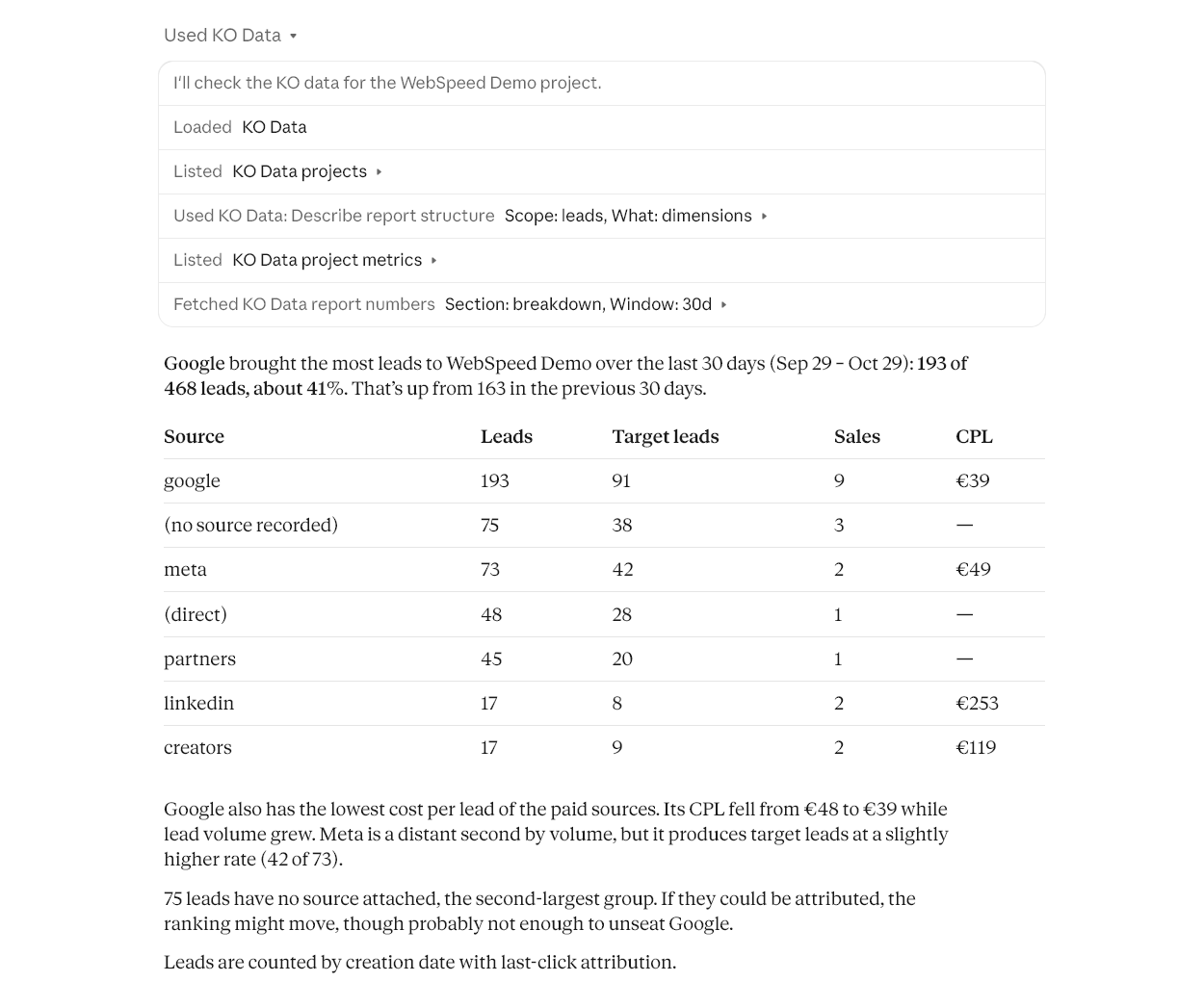
- Which traffic source brought the most leads in the last 30 days?
- What does KO suggest doing about the ad budget?
- Can I trust the numbers? Check the KO diagnostics.
- Which KO projects can I see?
More prompts, with what to ask next and where the data comes from
The assistant reads the same data you see in KO:
- Reports
- metrics, plan vs actual, breakdowns by source, campaign and any other field.
- Insights
- what changed and what KO suggests doing about it, the ad budget included.
- Journals
- single records: leads, deals, visits.
- Diagnostics
- where data is missing or does not add up.
- Catalogs
- the metrics and fields of the project, with their definitions.
Each number comes with how it was counted: time zone, comparison period, filters, the date and attribution of each metric. The assistant does not recount anything from raw data, so the answer matches what you see in KO.
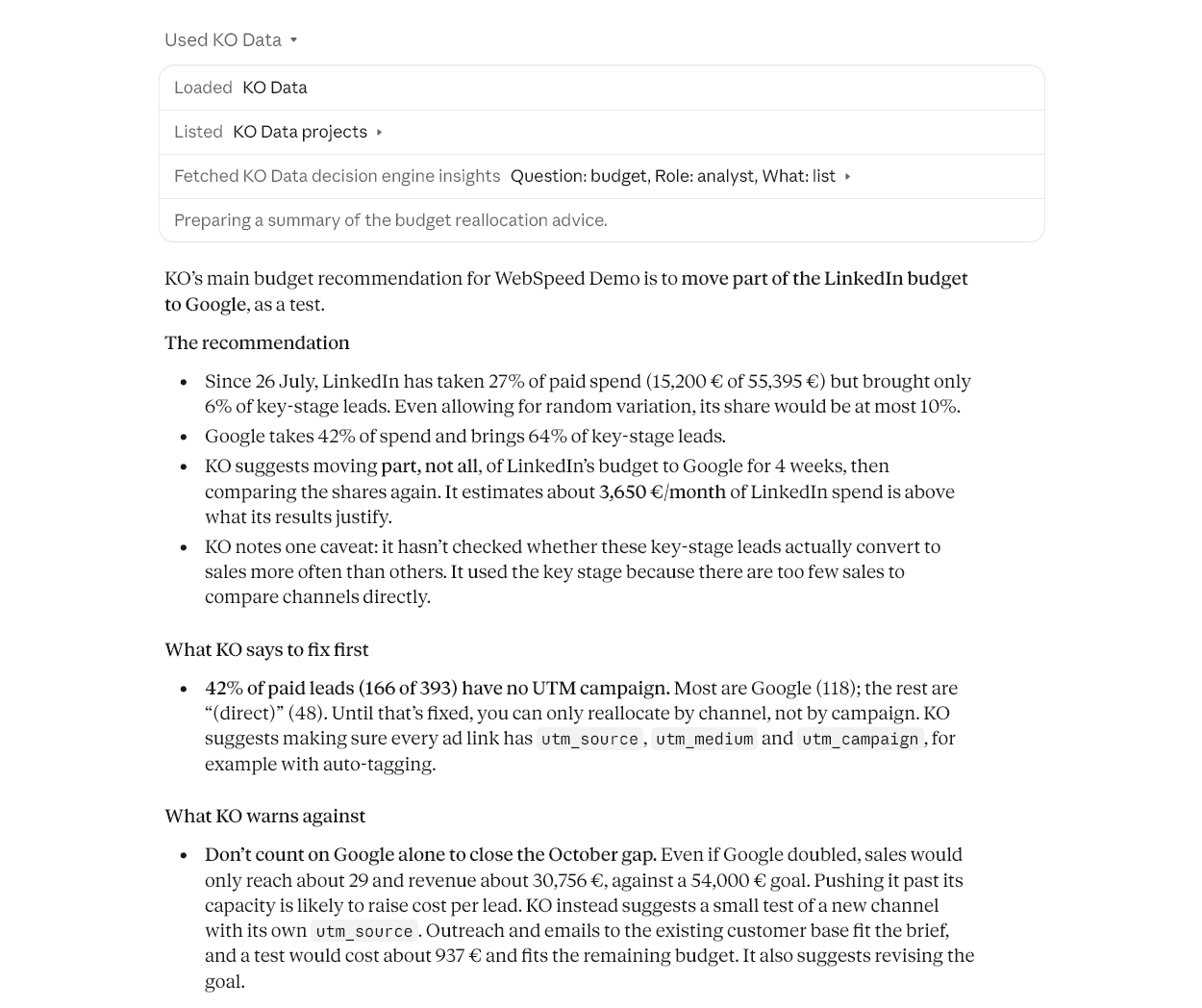
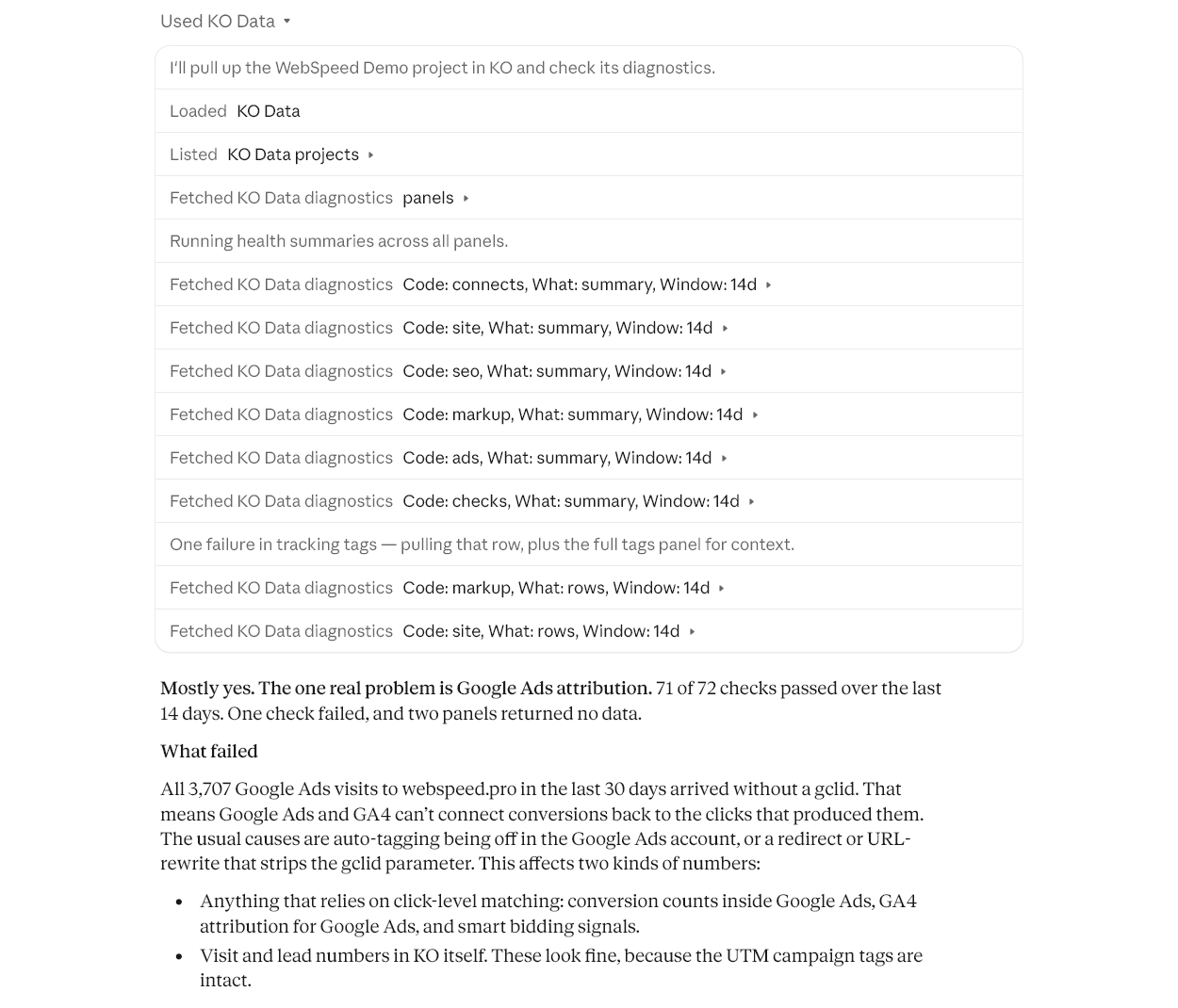
Claude answering from the KO demo project “WebSpeed Demo”. Sample data.
What the app won’t do
- Change anything. Access is read-only: settings, plans, budgets and campaigns stay as they are.
- See more than you can. The assistant sees exactly the projects your KO account can open.
- Keep access forever. If the connector is not used for 30 days, the access ends and KO asks you to sign in again. To disconnect earlier, remove KO in the assistant’s settings.
- Keep the answers inside KO. Each answer becomes part of your chat, and OpenAI or Anthropic handle that chat under their own privacy policies. Journals can contain records about your customers, so you decide what to ask for.
In Claude
Open KO Data in the Claude connector directory and press Connect.
Or add KO by its address:
- Open Settings → Connectors and press Add custom connector.
- Name it KO and paste the server address:
https://api.kodata.pro/v1/mcp - Leave OAuth Client ID and Secret empty, press Add, then Connect.
In ChatGPT
ChatGPT’s app directory does not list KO. Until it does, add KO in developer mode. It works on the web on Plus, Pro, Business, Enterprise and Edu plans.
- Open Settings → Apps → Advanced settings and turn on Developer mode.
- Create an app with the server address and choose OAuth:
https://api.kodata.pro/v1/mcp - Press Connect on the new app.
The “Sign in to KO” page opens. Enter the email and password of your KO account and press Sign in and allow. The assistant never sees your password: it only gets read access.
In a code editor
Claude Code, Cursor, Copilot and VS Code connect with a key. Issue it in KO under Personal settings → Connect AI: the screen puts it into a ready prompt for your agent.
Imagine your project is already in KO
The demo opens a sample project in KO: the same reports, insights and diagnostics the assistant reads.
No sign-up, no payment

See where your revenue comes from
See what to cut, fix, and scale — using your real data.


You'll meet the founders, not a sales rep — we built KO after years of running growth on broken numbers.